Audio Out
Switch your audio without leaving After Effects.
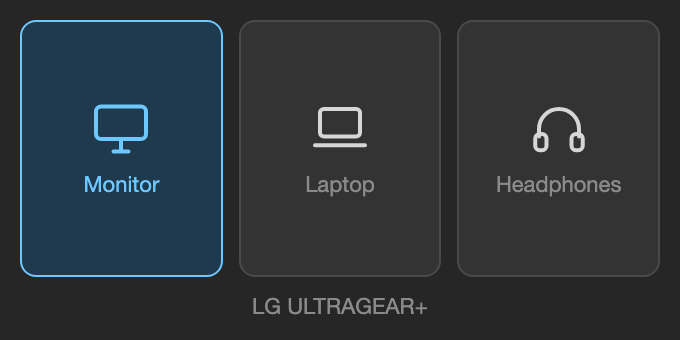
Monitor, laptop, headphones. Three tiles, one click each. The panel docks once and stays there, so you never open System Settings mid-edit again.
Download for MacFree. 6 KB. After Effects 2021 and newer.
What it does
- One click, no dialogsClick a tile and your Mac output changes right away. Nothing pops up, nothing steals focus from your comp.
- It finds your gear by itselfAny display counts as the monitor, your built in speakers count as the laptop, and whatever headphones or earmuffs you pair count as the third tile. Nothing to configure.
- Honest about what is connectedThe headphones tile stays dim until a pair is actually connected, so you always know what you are clicking.
Install it
- Download and unzip. You get a folder called Audio Out.
- Double click "Install Audio Out.command". It puts the panel in place and adds the small tool that does the switching.
- Quit After Effects and open it again. New panels only show up on a fresh launch.
- Set After Effects to follow your Mac. Settings, then Audio, then Default Output, and pick the entry that starts with "System Default". Do this once. It is the step everyone misses.
- Go to Window, then Extensions, then Audio Out. Drag it into your workspace and save the workspace so it stays.
Why step 4 matters. After Effects normally pins itself to one output device and ignores what the rest of your Mac is doing. Skip that setting and the panel will switch your Mac correctly while your preview audio keeps coming out of the same speakers, which looks exactly like a broken panel. "System Default" makes After Effects follow the panel.
If macOS blocks the installer. It is not signed by Apple, so the first run can be refused. Right click the file, choose Open, then click Open in the box that appears. It only asks once.
Requirements
macOS, After Effects 2021 or newer, and Homebrew. The installer uses Homebrew to add switchaudio-osx, the small open source tool that actually flips the output. If you do not have Homebrew, the installer prints the two lines you need and stops safely.